
Table of Contents
- Why Use the 1×1 Placement Trafficking in CM360 Using n8n Workflow?
- Phase 1: Configuring Your Google Cloud Gateway (Web App Setup)
- Phase 2: The Google Sheets “Remote Control”
- Phase 3: Detailed 1×1 Placement Trafficking in CM360 Using n8n workflow Logic
- Technical Readme: 1×1 Placement Trafficking in CM360 Using n8n workflow JSON
- Conclusion
- Critical Note: API Dependencies & Execution Order
In our previous deep dives, we used R to bypass the manual labor of Campaign Manager 360 (CM360). While effective, it still required a technician to run the code. Today, we are handing the keys to the media planners.
We’ve built a 1×1 Placement Trafficking in CM360 Using n8n workflow that turns a Google Sheet into a live trafficking dashboard. This system doesn’t just “push” data; it searches, validates, and builds complex hierarchies automatically, ensuring that 1×1 Placement Trafficking in CM360 Using n8n is scalable, error-free, and remarkably fast.
Why Use the 1×1 Placement Trafficking in CM360 Using n8n Workflow?
When managing high-volume campaigns, especially those requiring individual tracking for every line item, the manual UI becomes a bottleneck. Transitioning to the 1×1 Placement Trafficking in CM360 Using n8n workflow moves you from manual “clicking” to “systematized” trafficking. By using this automation, you ensure:
- No-Code Accessibility: Unlike local scripts that require coding knowledge, this n8n workflow allows anyone on the media team to launch campaigns directly from a Google Sheet.
- Operational Speed: You can build the entire hierarchy—from the Landing Page and Campaign down to the Tracking Ad—with a single execution, saving hours of manual setup.
- Bulletproof Consistency: Every placement, creative, and ad follows your exact naming conventions and settings automatically, eliminating the risk of human naming errors.
- Precision Accuracy: The workflow enforces the correct 1×1 dimensions and “AD_SERVING_TRACKING” types every time, so you never have to worry about a tracker failing to fire due to a setup mistake.
- Scalable Tracking: Because the workflow includes “Search-or-Create” logic, you can easily add dozens of new tracking placements to an existing campaign just by adding rows to your spreadsheet.
Phase 1: Configuring Your Google Cloud Gateway (Web App Setup)
To enable this 1×1 Placement Trafficking in CM360 Using n8n workflow, you must establish a secure connection via the Google Cloud Platform (GCP). Unlike previous parts, n8n requires a Web Application setup to handle the OAuth2 callback. Follow these 25 steps exactly:
- Navigate to the Google Cloud Console.
- In the top navigation bar, click on Select a project.
- Click the New Project button in the top right.
- Enter a Project name (e.g., “CM360 1×1 Automator”).
- Click Create and select the project once it finishes initializing.
- Click APIs & Services on the left sidebar.
- Click on Library.
- Search for “Campaign Manager 360 API” and click Enable.
- Return to the Library, search for “Google Sheets API”, and click Enable.
- Return to the Library, search for “Google Drive API”, and click Enable.
- Click OAuth consent screen on the left sidebar.
- Click Get Started or Create (Select External).
- Enter your App name (e.g., “n8n Trafficking Bot”).
- Under User support email, select your email address.
- In the Scopes section, add:
.../auth/dfatrafficking,.../auth/spreadsheets, and.../auth/drive.file. - Under Developer contact information, enter your email address again.
- Click Save and Continue until you reach the dashboard.
- Go to the Test users section, click Add Users, and enter the email address that has access to your CM360 account.
- Now, click the Credentials tab on the left sidebar.
- Click Create Credentials > OAuth client ID.
- In the Application type dropdown, you MUST select Web application.
- Give it a name (e.g., “n8n Server Connection”).
- Critical Step: Under Authorized redirect URIs, click Add URI.
- Paste the OAuth Redirect URL provided by your n8n instance (found in the credentials settings of your Google Sheets or HTTP nodes).
- Click Create and Download JSON. Save this file securely; you will upload it to n8n to connect your account.
Phase 2: The Google Sheets “Remote Control”
The 1×1 Placement Trafficking in CM360 Using n8n workflow acts as a bridge between your spreadsheet and the API. Your Google Sheet must contain these exact column headers in Row 1 to match the 1×1 Placement Trafficking in CM360 Using n8n workflow logic:
- Identifiers:
profile_id,advertiser_id,site_id - Asset Names:
landing_page_name,campaign_name,placement_name,creative_name,ad_name - Asset IDs (for feedback):
landing_page_id,campaign_id,placement_id,creative_id,ad_id - Settings:
landing_page_url,Start Date,End Date,status,row_number
The 1×1 Placement Trafficking in CM360 Using n8n workflow is programmed to only process rows where the status column is empty, allowing you to keep a running history of all campaigns in a single sheet.
Phase 3: Detailed 1×1 Placement Trafficking in CM360 Using n8n workflow Logic
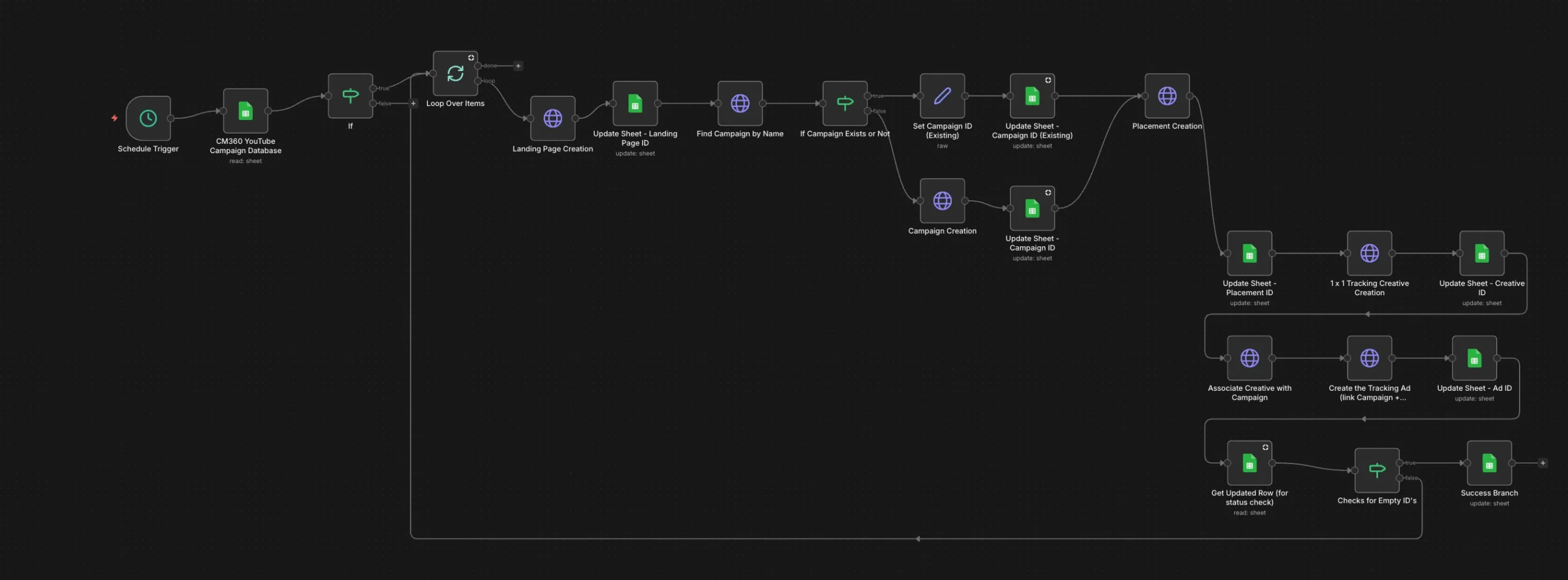
The 1×1 Placement Trafficking in CM360 Using n8n workflow is designed with a “Search-or-Create” brain. It avoids duplicating campaigns by checking your account first.
1. The Entry Point (Schedule & Batching)
The 1×1 Placement Trafficking in CM360 Using n8n workflow triggers via a Schedule Trigger. It pulls all rows from your sheet and uses a Split In Batches node to process them one by one. This prevents API rate-limiting and ensures that an error on row 5 doesn’t stop row 6 from finishing.
2. The Landing Page Anchor
CM360 requires a defaultLandingPageId before a campaign can even be created via API.
- Node: “Landing Page Creation”.
- Action: Creates a new Landing Page at the Advertiser level and writes the ID back to your sheet.
3. The “Search-or-Create” Campaign Engine
This is how we handle Multiple 1×1 Placements.
- Node: “Find Campaign by Name”.
- Action: Performs a GET request using a
searchStringof your campaign name. - Logic: If the campaign exists, the 1×1 Placement Trafficking in CM360 Using n8n workflow grabs that ID. If it doesn’t, it triggers the “Campaign Creation” node. This allows you to list the same campaign name in multiple rows to add multiple trackers to it.
4. The 1×1 Tracker Payload
Once the Campaign ID is secured, the 1×1 Placement Trafficking in CM360 Using n8n workflow fires three rapid-fire creation steps:
- Placement Creation: Builds a 1×1 Display placement.
- Tracking Creative: Builds a
TRACKING_TEXT1×1 creative. - Ad & Association: Creates the Tracking Ad, assigns the placement, and links the creative with a 100% rotation.
5. The Verification Loop
Before finishing, the “Checks for Empty ID’s” node ensures every asset (LP, Campaign, Placement, Creative, Ad) has a valid ID returned from the API. If all IDs are present, the “Success Branch” marks the row as “Success” in your sheet.
Technical Readme: 1×1 Placement Trafficking in CM360 Using n8n workflow JSON
We have provided a sanitized version of the JSON below. To use it:
- Import: In n8n, click Import from File.
- Scrubbing: We have replaced sensitive Sheet IDs with
REPLACE_WITH_YOUR_GOOGLE_SHEET_ID. You must update these in every Google Sheet node. - Credentials: Create a new “Google OAuth2 API” credential using the JSON file you downloaded in Phase 1.
Conclusion
By implementing the 1×1 Placement Trafficking in CM360 Using n8n workflow, you are moving away from manual entry and toward Scalable Media Ops. Stay tuned for the next part of our series, where we will automate the extraction of these tracking tags for final delivery to your media partners!
If you need help setting up your n8n workflow, reach out at help@marketertools.com.
Explore Our Tool Library
- Campaign Pacing Tool
- Annual Advertising Media Pacing Calculator
- A/B Test Sample Size Calculator
- Media Mix Planner
- Break-Even ROAS Calculator: The Ultimate Profitability Tool for E-commerce
- PPC/Google Ads Keywords: Free Match Type Wrapper & Cleaner
- Incrementality Calculator: CPA & ROAS
- The Ultimate GA4 UTM Builder: Stop Losing Traffic to “Unassigned”
- Quantify Your Value: The Ultimate Landing Page ROI Calculator for Agencies
- Automating CM360 (Part 2): The Standard Display Campaign Workflow
Critical Note: API Dependencies & Execution Order
When deploying the 1×1 Placement Trafficking in CM360 Using n8n workflow, understanding the CM360 API hierarchy is vital to avoiding “400 Bad Request” errors. This workflow is built to respect these strict dependencies automatically, but you must ensure your data inputs follow these rules:
- The Landing Page Anchor: In the CM360 API, a Campaign cannot be created without a
defaultLandingPageId. The workflow solves this by creating the Landing Page first and passing its ID into the Campaign creation node. - Logical ID Chaining: Every subsequent asset—Placements, Creatives, and Ads—requires an existing
campaign_idoradvertiser_idto be successfully generated. The workflow uses a “Search-or-Create” logic to find an existing campaign by name or build a new one before proceeding to the 1×1 tracker assets. - The “Empty ID” Safety Net: Before the workflow marks a row as “Success” in your Google Sheet, it passes through a “Checks for Empty ID’s” node. This node verifies that all five critical IDs (Landing Page, Campaign, Placement, Creative, and Ad) were returned by the API. If even one asset fails to create, the workflow will not mark the row as finished, allowing you to troubleshoot and re-run only the failed items.
- ISO 8601 Date Formatting: The CM360 API for Ad creation requires a specific timestamp format (e.g.,
YYYY-MM-DDThh:mm:ssZ). The workflow automatically appends the necessary “T00:00:00Z” strings to your “Start Date” and “End Date” from Google Sheets to ensure the API accepts the payload.
Frequently Asked Questions (FAQ)
1. What exactly does the 1×1 Placement Trafficking in CM360 Using n8n workflow automate?
This workflow automates the entire CM360 hierarchy required for tracking YouTube or off-platform media. It reads your campaign data from a Google Sheet and automatically creates an Advertiser Landing Page, searches for or creates a Campaign, generates a 1×1 Placement, builds a Tracking Creative, and finally links them all together with a Tracking Ad.
2. Why does the workflow create a Landing Page before the Campaign?
In the Campaign Manager 360 API, a campaign cannot be created without a defaultLandingPageId. By creating the Landing Page first, the workflow captures that ID and passes it into the Campaign creation node to ensure the API request is accepted.
3. How does the “Search-or-Create” logic handle multiple trackers for one campaign?
The “Find Campaign by Name” node performs a GET request to CM360 to see if your campaign_name already exists. If a match is found, the workflow uses that existing ID for the rest of the steps. This allows you to add dozens of individual trackers to a single campaign just by repeating the campaign name across multiple rows in your Google Sheet.
4. What happens if one of the assets (like a Creative) fails to create?
The workflow includes a “Checks for Empty ID’s” node that acts as a quality gate. It verifies that every single asset ID was successfully generated before marking the row as “Success”. If an ID is missing, the row status remains empty, allowing you to fix the specific error and re-run only that row without creating duplicates for the parts that worked.
5. What permissions do I need to run this workflow? To execute these API calls, the email address you use for authentication in the Google Cloud Console must have a User Profile in CM360 with Trafficker permissions or higher. Additionally, you must ensure the “Campaign Manager 360 API” is enabled in your Google Cloud Project.
6. How often does the workflow run? This is controlled by the Schedule Trigger node. You can set it to run every minute, every hour, or at a specific time of day depending on your agency’s trafficking volume.
7. Why is my “Start Date” or “End Date” causing an error? The CM360 API is highly sensitive to date formatting. The workflow automatically appends the required timestamp (e.g., T00:00:00Z) to the dates provided in your Google Sheet. Ensure your sheet uses the YYYY-MM-DD format to prevent the automation from failing at the Ad creation stage.